
Get Gear Shop $$$ and free Rivian charging credits! Use code RYAN4190772 when ordering your new Rivian.
I’ve spent a lot of time fiddling with the audio settings in my Dune R1T, especially when streaming Apple Music. Rivian’s Premium Audio system has a lot of potential, but the default settings don’t always make Apple Music sound as full or consistent as I want it to.
After lots of listening and tweaking, these are the settings that currently sound best to me.
My Current Apple Music Settings
- Disable Spatial Audio
- Disable Sound Check
- Disable Streaming Quality
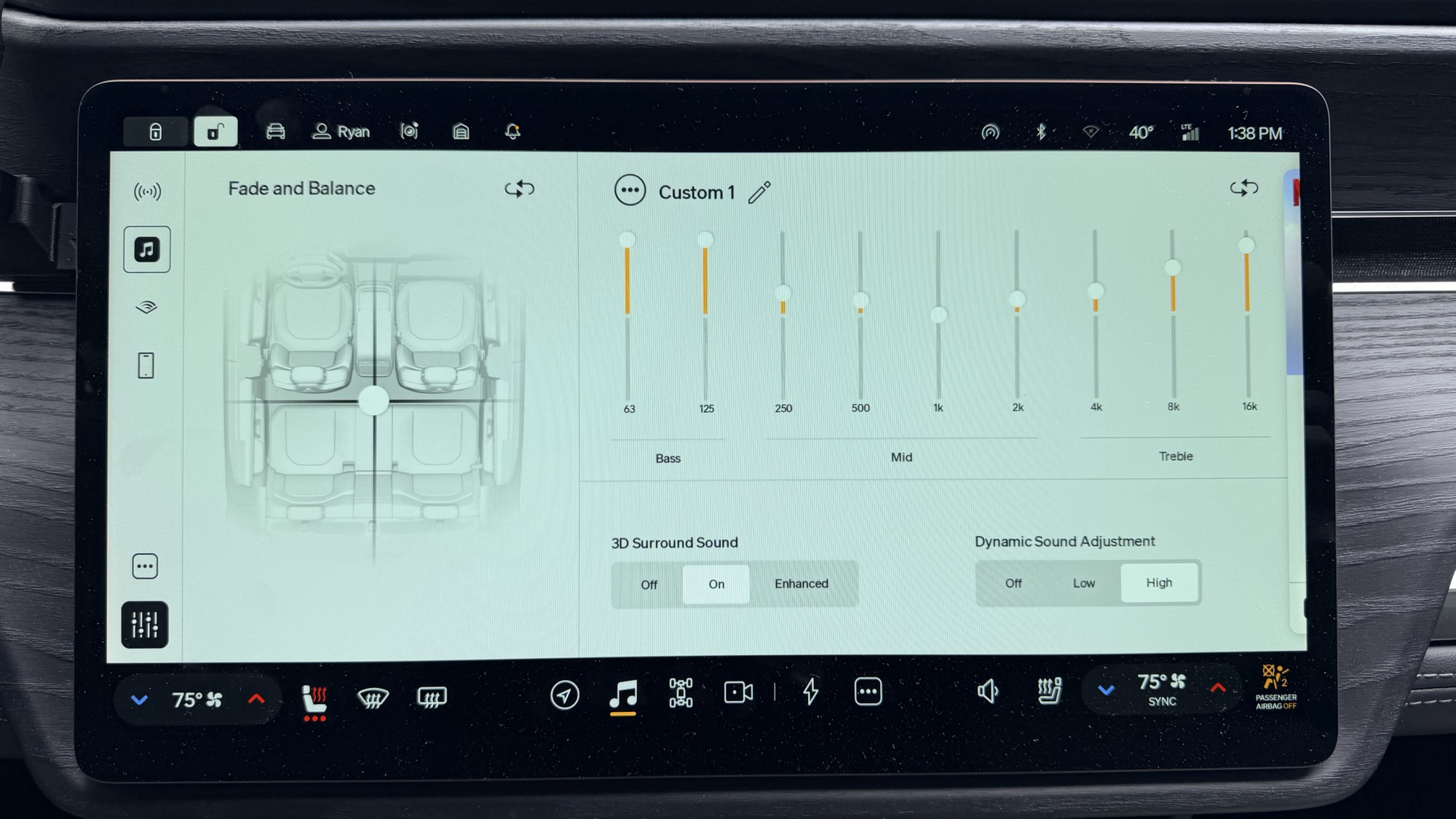
- Turn 3D Surround Sound on
- Set Dynamic Sound Adjustment to High
- Use an extreme V curve EQ, with 63 Hz and 125 Hz maxed out
Why I Turn Spatial Audio Off
Spatial Audio can be really impressive in the right environment, but I often find that to only be for TV or movies. For music, Spatial Audio feels gimmicky and causes the track to lose energy.
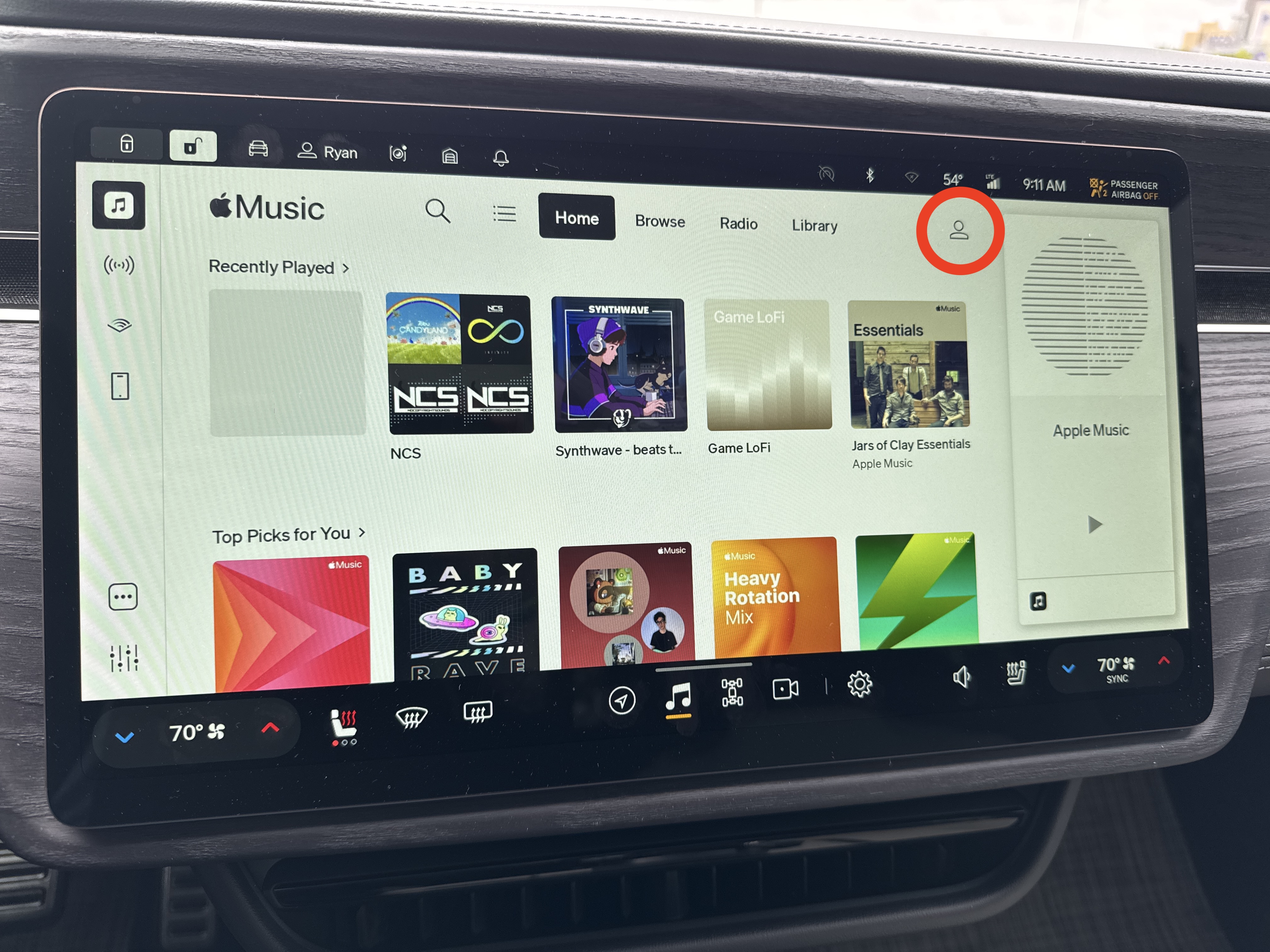
To turn it off, tap your user profile button in the top right of the Apple Music screen, then review the playback options:
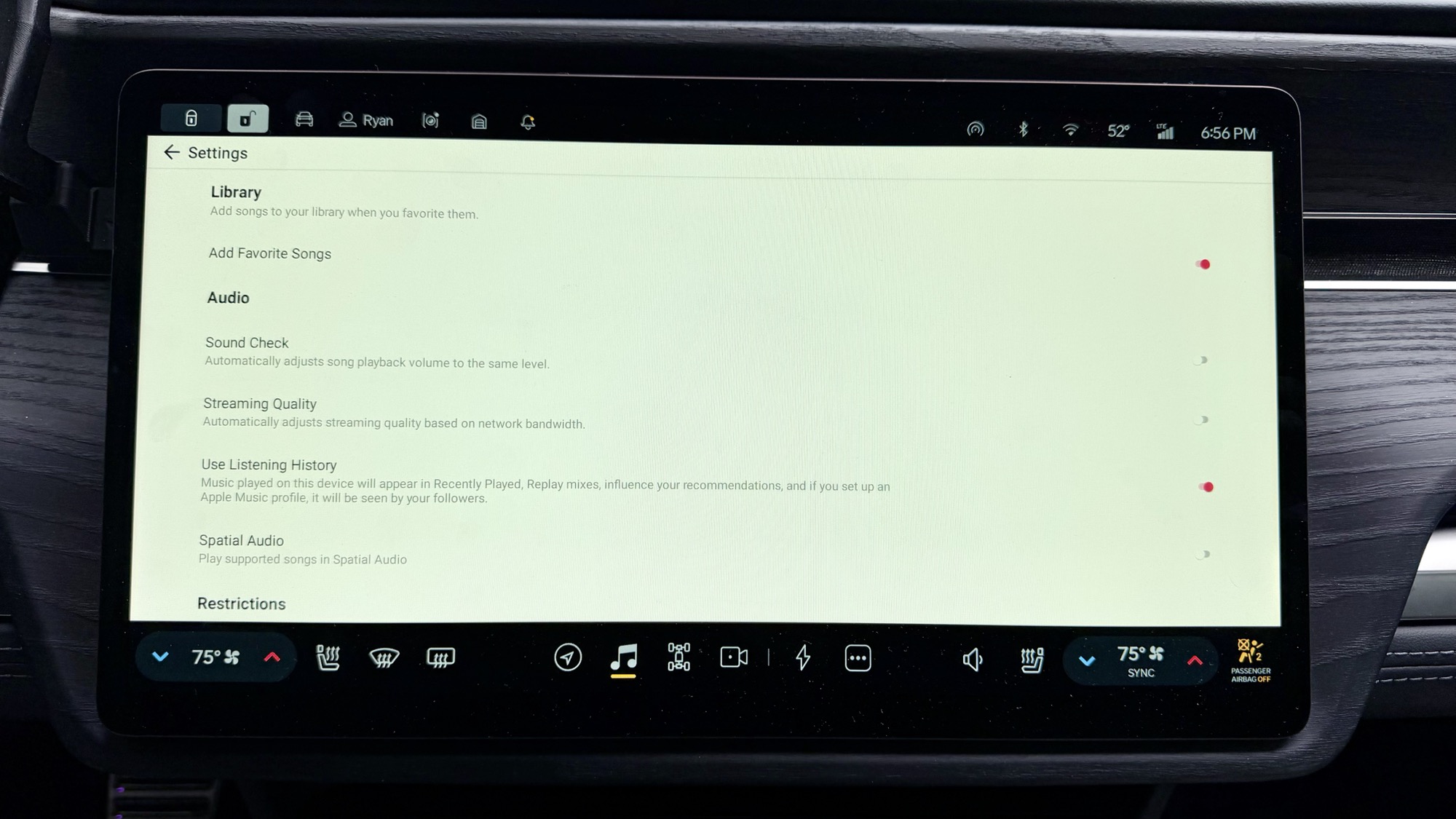
Then toggle Spatial Audio off.
Why I Also Disable Sound Check
Sound Check is meant to normalize volume between songs, which is never how the song artist or producer designed the song to be listened to. In practice, I find it can flatten the experience a bit. I’m quite surprised it’s enabled by default.
With Sound Check off, songs are allowed to keep more of their original energy. That does mean some tracks may be louder than others, but I prefer that tradeoff over everything feeling overly leveled.
Why I Turn Streaming Quality Off
The other Apple Music toggle I turn off is Streaming Quality. In practice, it works well enough, but when it kicks in, it causes a hiccup in the music that’s super distracting and ruins the moment.
I’d rather listen to an entire song in a slightly lower bit rate than have it hiccup as it changes quality.
The Rivian Settings That Help Most
The two Rivian-side settings that seem to make the biggest difference are 3D Surround Sound and Dynamic Sound Adjustment.
I keep 3D Surround Sound enabled because it helps make better use of the cabin speakers, including the overhead tweeters. It gives the soundstage more width without leaning on Apple Music’s Spatial Audio processing.
I set Dynamic Sound Adjustment to High because it helps the system feel more alive, even in scenarios it doesn’t advertise like low speed and low volume. With that combo, you’ll hear a richer, deeper sounding playback than with it off or on low.
The EQ Curve
The biggest change is the EQ. Instead of using one of the built-in presets, I’m using a pretty aggressive V curve:
- 63 Hz maxed out
- 125 Hz maxed out
- Mids pulled back
- Highs lifted enough to keep vocals and detail clear
This gives Apple Music more low-end weight. It also helps rock, pop, electronic, and hip-hop tracks feel less thin through the Rivian system. Does it muddy it up a bit? I feel like it should… but I’m actually happy with the extra attention it gives on the lows.
Your Mileage May Vary
Audio is subjective, and cabin sound can change depending on where you’re sitting, what you’re listening to, and how loudly you play it. These settings are simply what sound best to me in my R1T right now.
If you’re unhappy with Apple Music in your Rivian, this setup is worth trying as a starting point:
- Turn off Spatial Audio and Sound Check
- Turn off Streaming Quality
- Turn on 3D Surround Sound
- Set Dynamic Sound Adjustment to High
- Push the low end with a V-shaped EQ
Hopefully Rivian keeps tuning the audio experience through future software updates, because the hardware feels like it should be capable of more. For now, this setup gets Apple Music sounding the best it has sounded in my truck.
Get Gear Shop $$$ and free Rivian charging credits! Use code RYAN4190772 when ordering your new Rivian.